Learn how to create a prepay event for hhimagehost.
WHAT YOU’LL NEED
- Prepay price list
STEP 1 CREATE EVENT
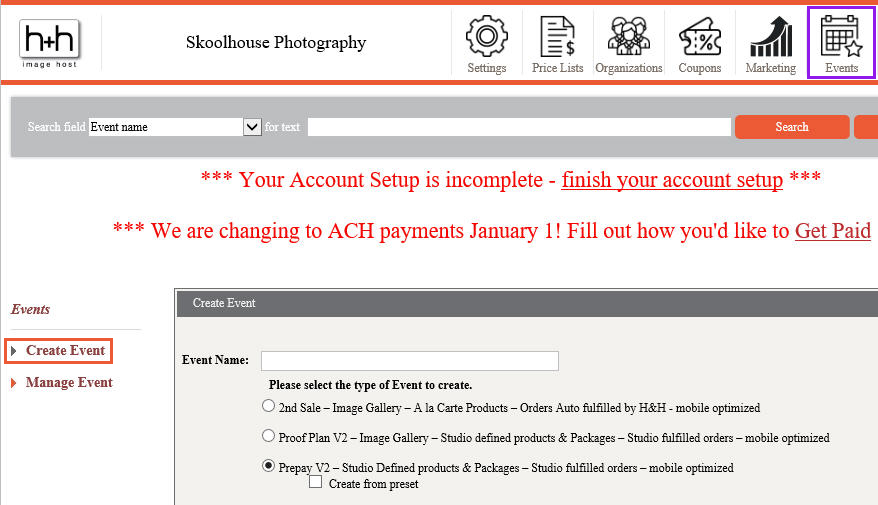 | Login to hhimagehost.com Click on Events icon Click “Create Event” |
STEP 2 NAME EVENT
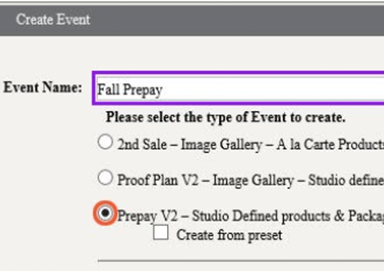
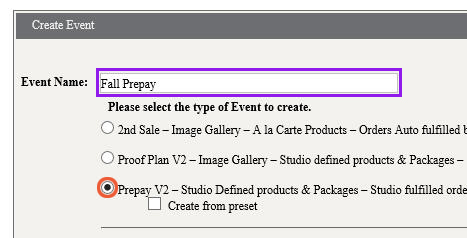 | Enter Event Name Select “Prepay V2” Click “Next Step” Button |
STEP 3 EVENT DETAILS
 | Note Event URL Name defaults to Event Name already entered Set Event Type from dropdown Note Event Name defaults to Event Name already entered Only fields marked with a * are required |
STEP 4 EVENT POSTING & SALES DETAILS
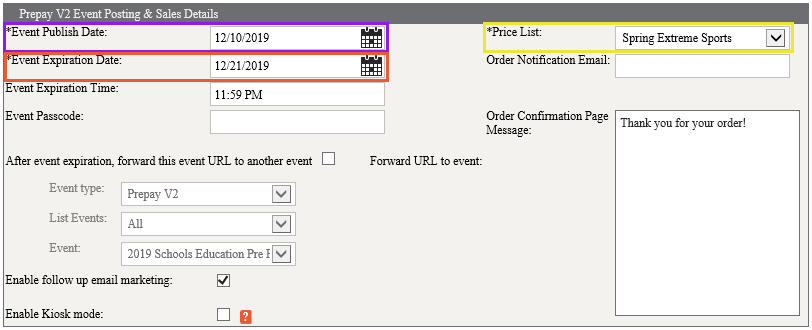 | Set Event Publish Date Set Event Expiration Date Choose Price List from dropdown [OPTIONAL] Set Event Passcode, Event Forwarding, Order Notification Email, and edit the Order Confirmation Page Message [OPTIONAL] Enable kiosk mode if needed for your event |
STEP 5 IMAGE DETAILS
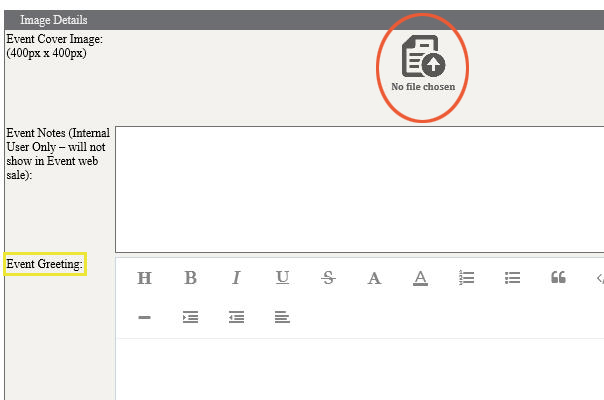 | Add an Event Cover Image if you choose to use one Add any Event Notes if needed for internal use Add an Event Greeting if you choose to use one (can be entered as plain text, or added from another source using the icons Click Save |